

الوصف
The “Developer Debug Tools” WordPress plugin is a powerhouse for developers and site administrators! It’s a FREE comprehensive toolkit that helps you identify, troubleshoot, and resolve issues in your WordPress site, making debugging a breeze. No premium version available.
This plugin offers a suite of features to aid in debugging, including, but not limited to:
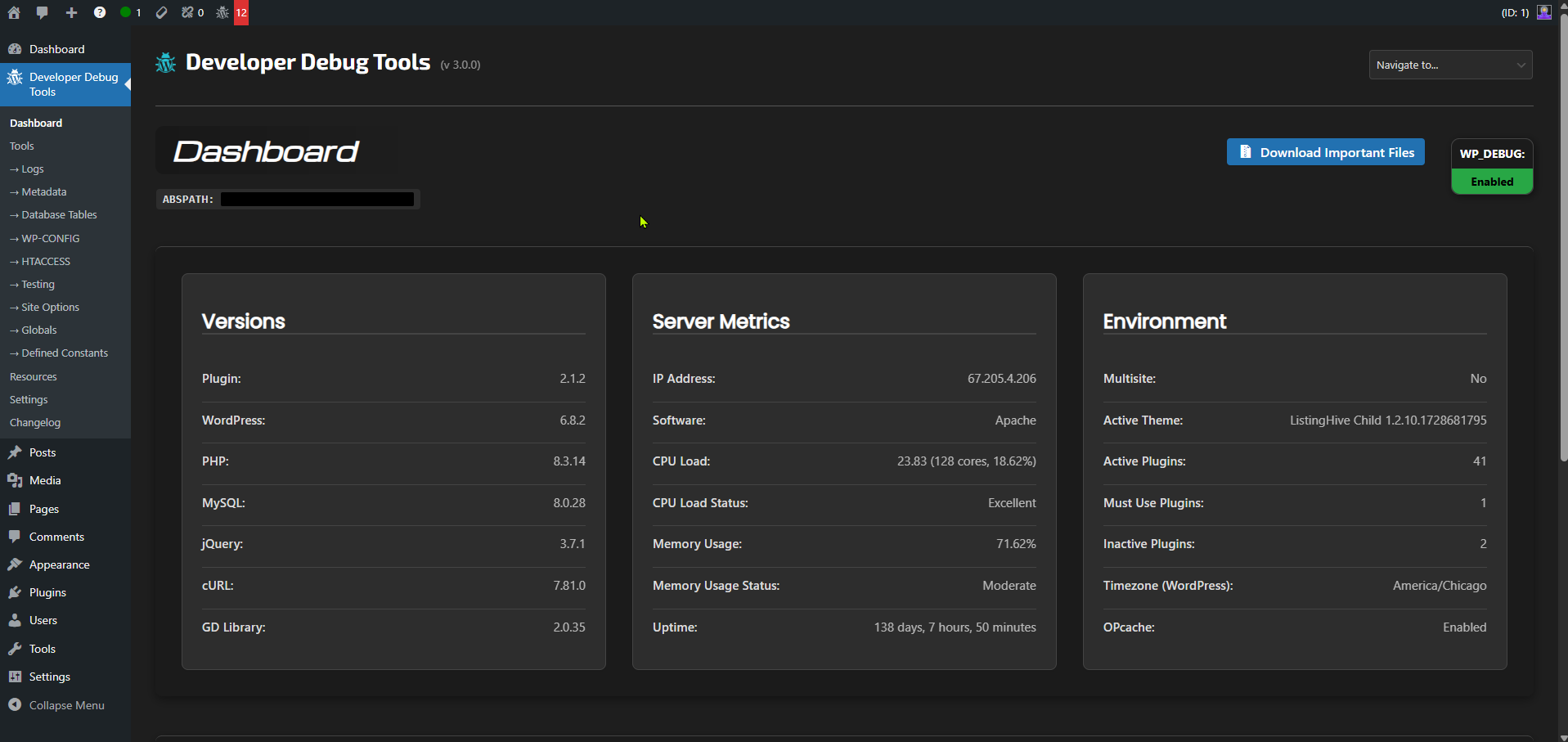
- Dashboard with important site information and server metrics
- Enhanced log viewer for
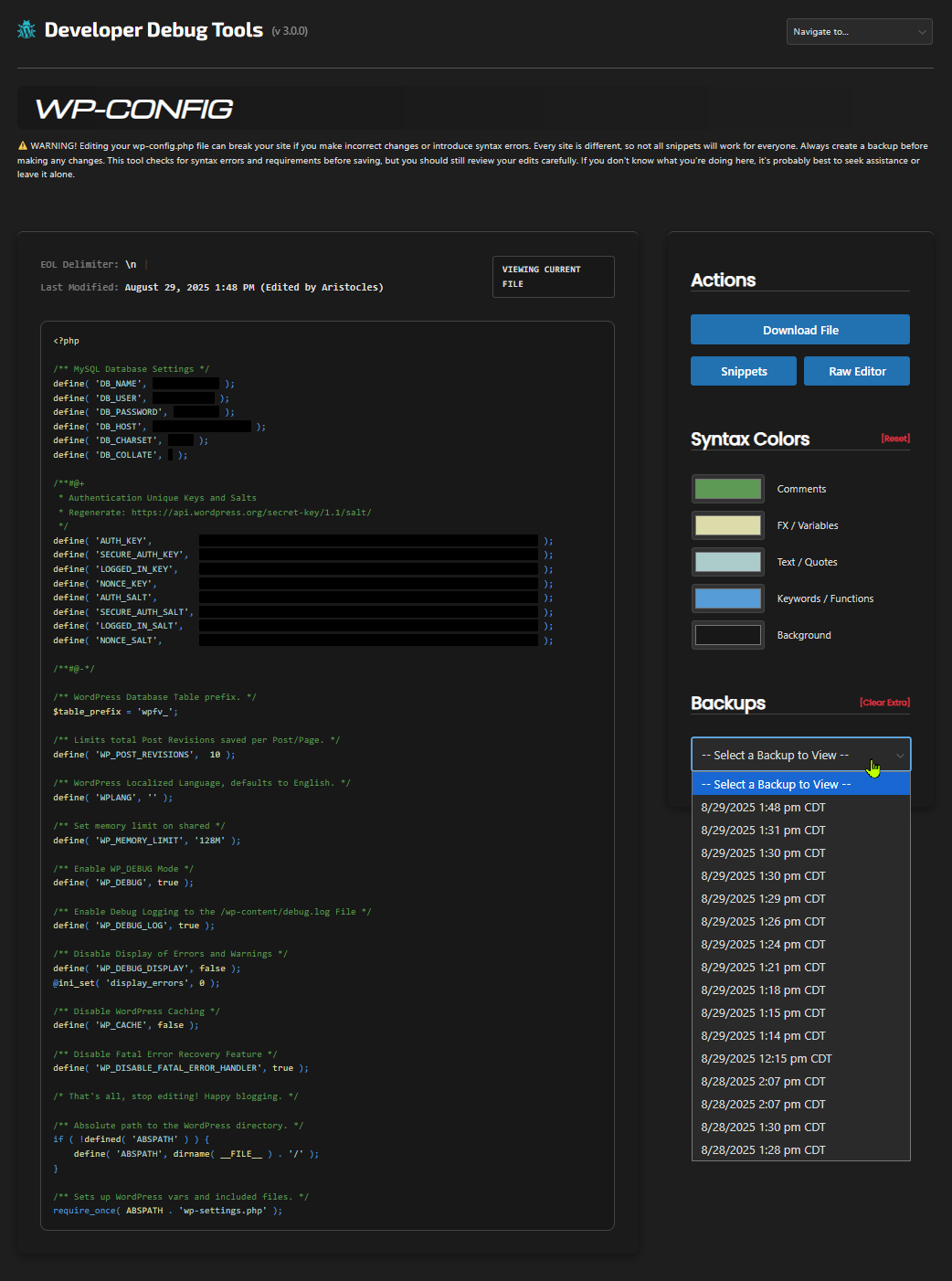
debug.log, error logs, custom logs, and an activity log - Config file viewers and editors for
wp-config.phpand.htaccessfiles - SEO viewer for
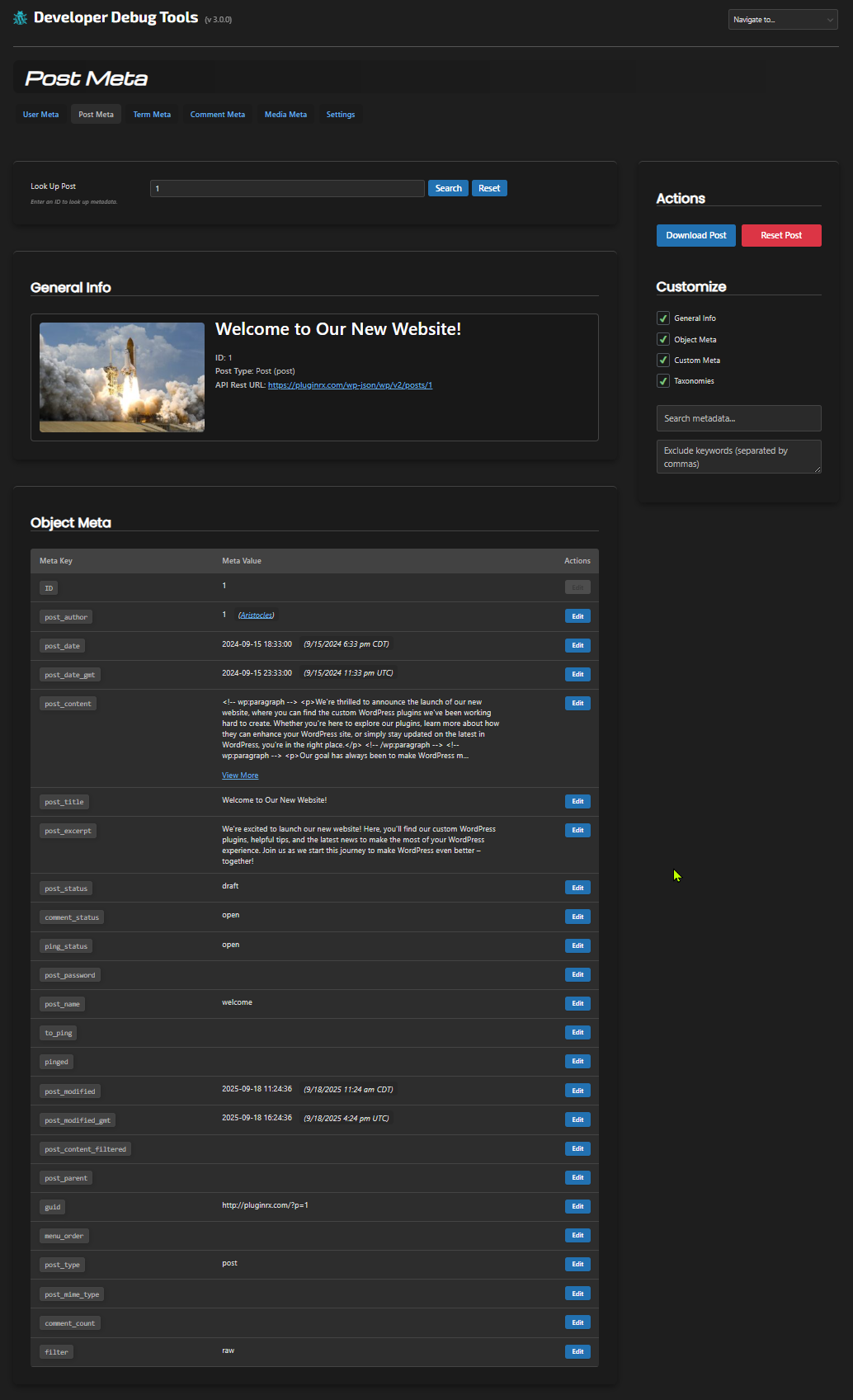
robots.txt, sitemaps, andllms.txtwith built-in diagnostics - Meta Data viewer and editor for users, posts, tax terms, comments, and media
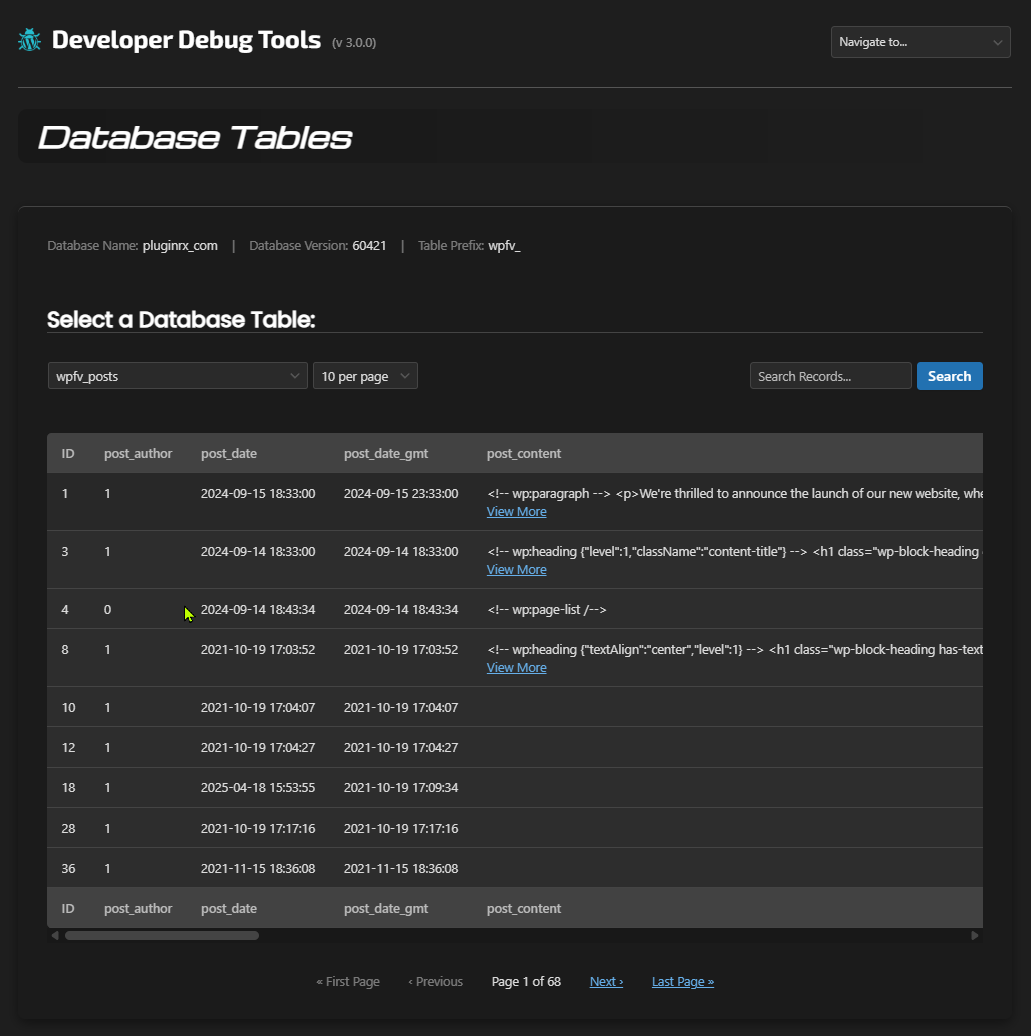
- Database Table records viewer
- Site Options viewer and editor
- Globals viewer
- Defined Constants viewer
- Transients, Cookies, and Sessions management
- REST API viewer and status checker
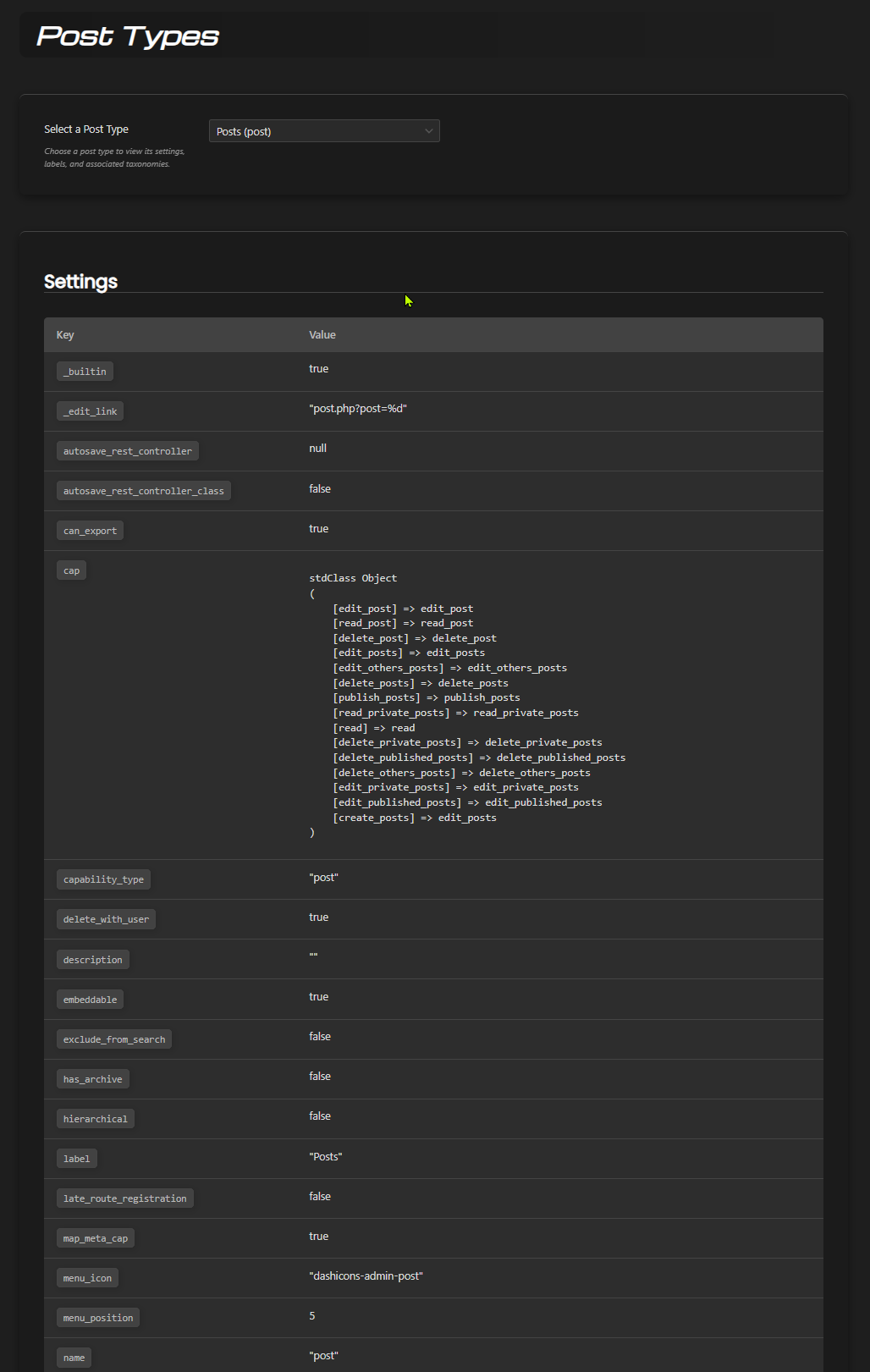
- Post Types and Taxonomies viewers
- Auto-Draft viewer and clearer
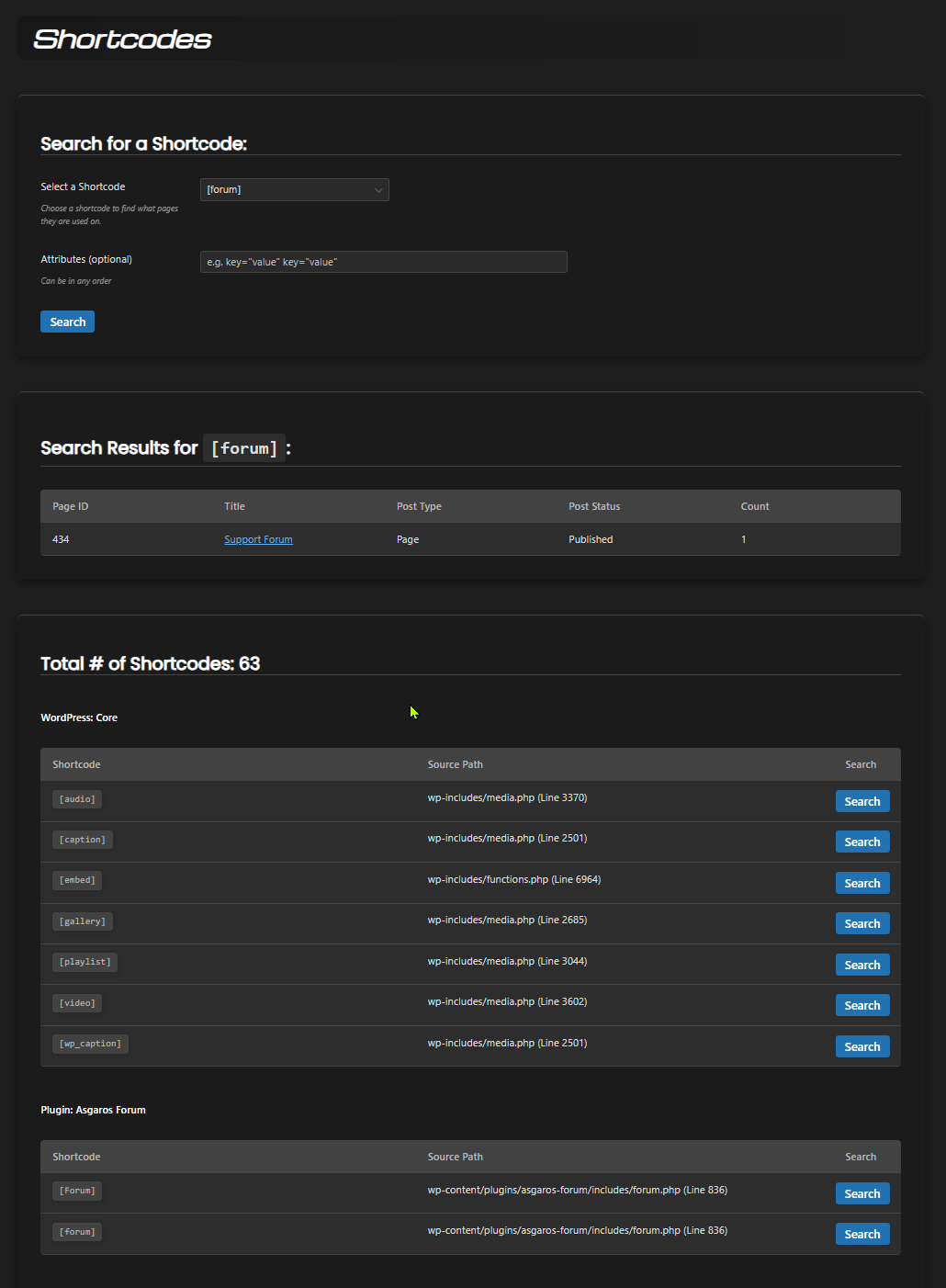
- Shortcode Finder
- Cron Jobs viewer
- PHP Info and php.ini viewers
- Discord Notifications of fatal errors and when users with certain roles log in
- Discord Messenger for testing connections with Discord
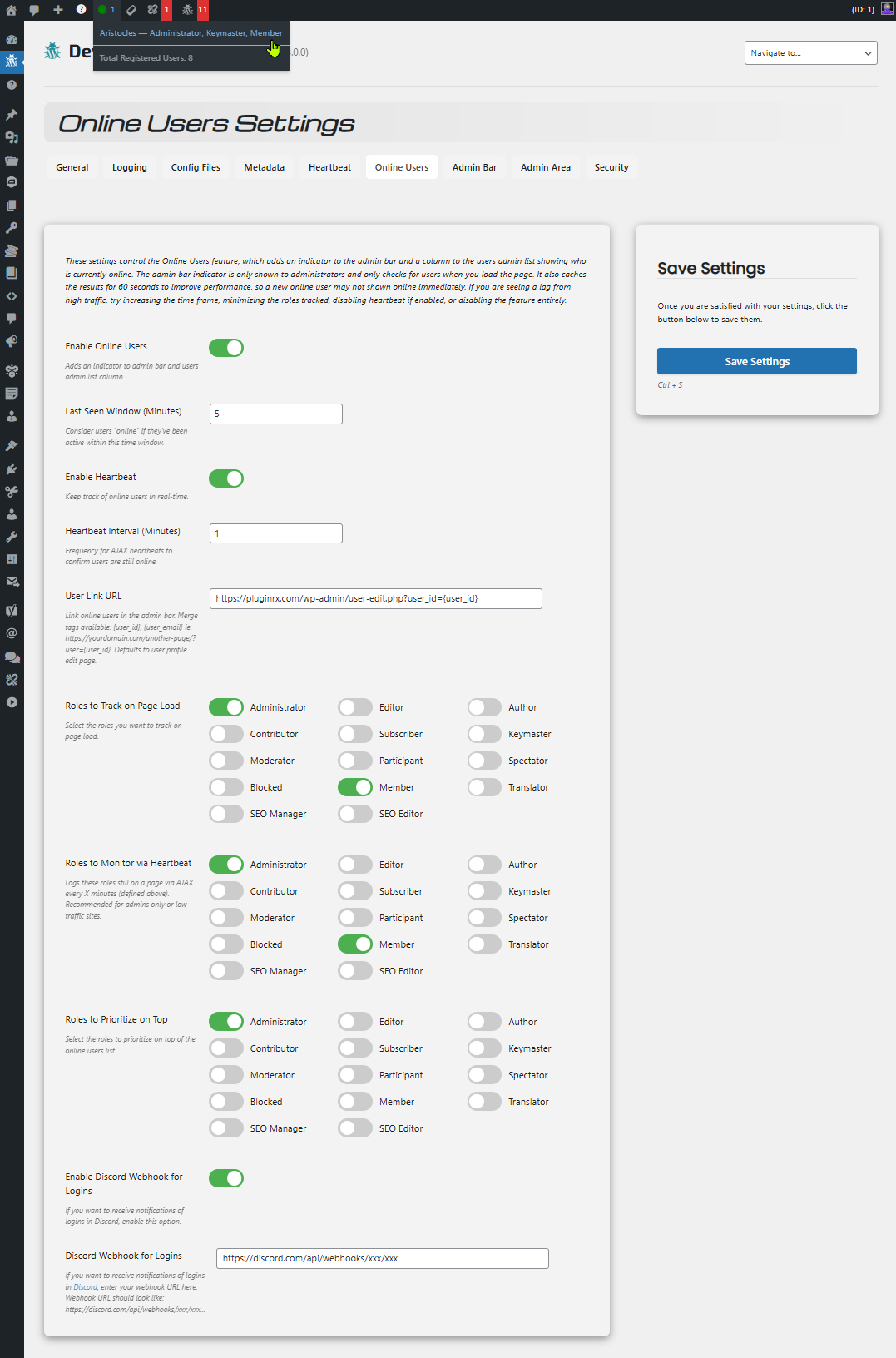
- See who’s online and last online dates
- Heartbeat Monitor for testing WP Heartbeat API sitewide
- Plugins Page Enhancements with addt plugin data and notes feature
- Security Options for hiding the plugin and password protection to any admin page
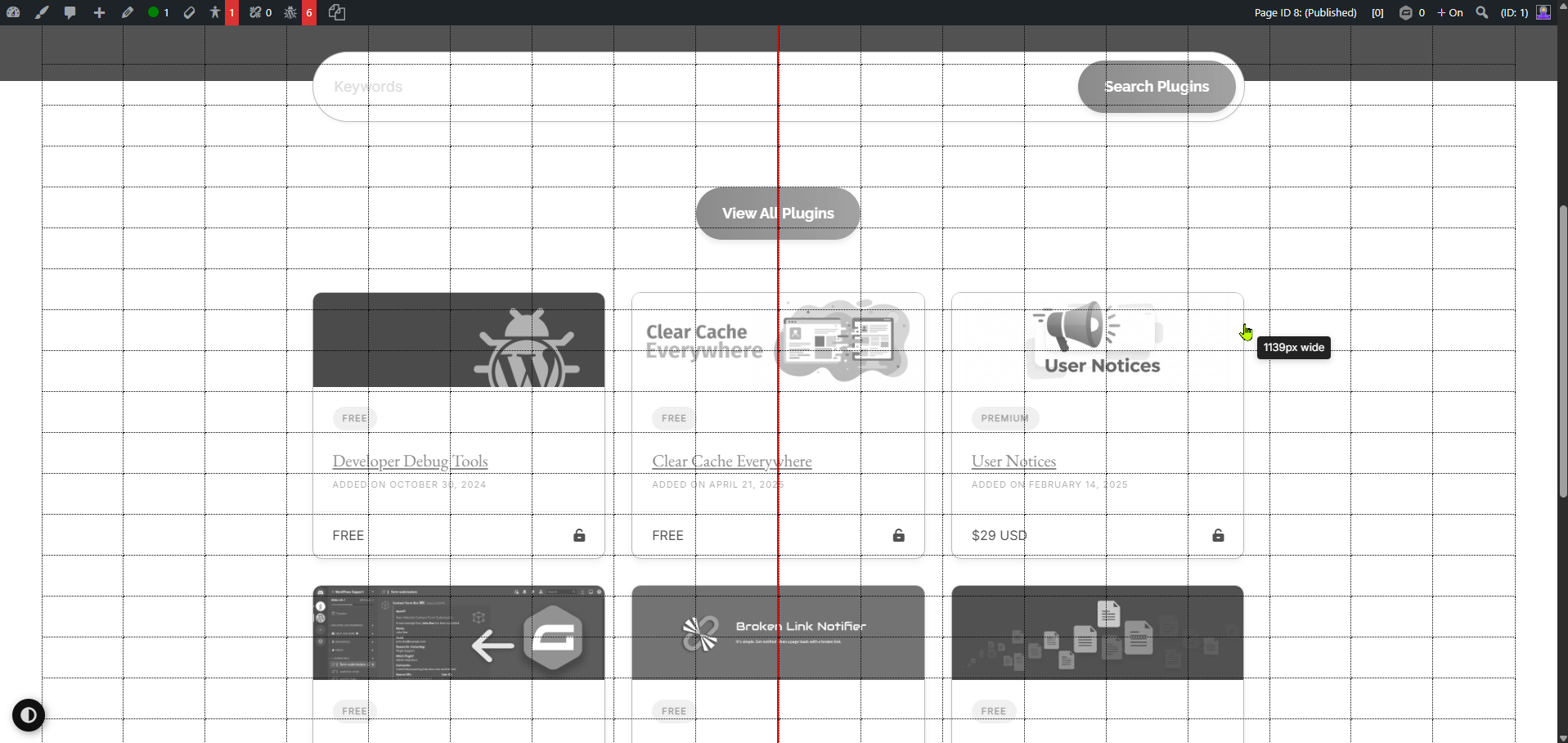
- Admin Bar Tools such as seeing Post ID/type/status, User ID, an interactive centering tool, and more
- Quick Debug Links for debugging users, posts, and comments
- Gravity Forms integrations
With “Developer Debug Tools”, you can:
- Identify and fix errors, bugs, and conflicts
- Troubleshoot complex issues with ease
- Update user and post meta straight from the admin area
- Streamline your development and testing workflow
This plugin is a must-have for any WordPress developer or site administrator who wants to ensure a stable, efficient, and high-performing website. It’s like having a trusty sidekick that helps you tackle even the most challenging debugging tasks!
Demo
لقطات الشاشة


التنصيب
- Install the plugin from your website’s plugin directory, or upload the plugin to your plugins folder.
- Activate it.
- Go to Developer Debug Tools in your admin menu.
الأسئلة المتكررّة
-
Should I backup my wp-config.php and .htaccess files before using the tools to add/remove snippets?
-
Yes! It is always best to back these files up when making updates to them. You can do so on the config file pages or all together with your functions.php in a zip file from the dashboard.
-
Can I use this plugin on a live website?
-
Yes, but you should always make a backup of your site before using functionality that makes changes to your core files or database.
-
My site broke when updating my wp-config.php or .htaccess from your plugin. How do I revert back to my original?
-
The file editors have been improved to include a code/lint checker and other checks to ensure that they include certain working pieces. However, nothing is full-proof, so in the case that something happens, a backup is automatically stored in the same folders as the originals before being saved. The backups are named with the date and time from which they were replaced. For example, the
wp-config.phpfile will have been renamed towp-config-2022-08-22-15-25-46.phpand replaced with a new file. Simply log into your FTP or File Manager (from your host), rename the current file to something else such aswp-config-BROKEN.php(just in case you need it), and then rename the version you want to revert back to aswp-config.php. If everything looks good, then you can either delete the broken file or send a copy of it to PluginRx so we can figure out what went wrong. -
How can I switch between dark and light mode?
-
Click on the bug icon in the header. 😉
-
What is Test Mode? And How do I get out of it?
-
If you are seeing that Test Mode is Active in the header, you likely accidentally clicked on the version number. Test Mode is for our developers only. If you contact support with an issue you are having with the plugin not working the way it should be, we may have you activate Test Mode with additional instructions on what to provide so we can handle it promptly. It is of no use to you otherwise. Just click on the version number in the header again to disable it.
-
Why can’t I edit a username for a user?
-
Some hosts will not allow you to update a user’s username directly from WP. In order to do so, you’ll have to update it in your database directly.
-
Where is the centering tool?
-
Viewable only on the front-end, there is a link on the admin bar that shows
+ Off. Click on it and it will add a semi-transparent bar with lines on it at the top of the page underneath the admin bar. If you click on this bar it will expand all the way down the page. Click on it again and it will minimize back to the top. You can click on the+ Onlink from the admin bar to make it go away. -
Where are the quick debug links?
-
You have to enable them on the Developer Debug Tools settings first under the Admin Menu tab. Once they are enabled, an “ID” column will be added to the corresponding admin list pages. Next to the user or post’s ID you will see a lightning bolt icon. Clicking on the lightning bolt will redirect you to the Metadata page on the plugin where you can view and edit all of the meta easily. Links are also added to the user profile and post edit screens.
-
I hid the plugin, now I can’t find it!
-
You can get there directly by going to
https://yourdomain.com/wp-admin/admin.php?page=dev-debug-dashboard. Be sure to bookmark it next time like the instructions say to do! -
I password-protected the plugin and forgot my password, how can I reset it?
-
If you password-protected your
options.phppage like you should have (included by default), then you will need to log in directly to your database and clear the password manually ({prefix}_optionstable > delete keyddtt_pass). We used to have a forgot password option that would email a reset link to the devs, but it’s easy to intercept that email with various email logging plugins if you have access to the admin area of your site. -
Why does the SEO tool show a request error on my staging site?
-
The SEO tool fetches your
robots.txtand sitemaps over HTTP, just like a search engine would. If your staging site uses basic authentication or your host blocks requests from the server back to itself, those requests will fail. The diagnostics table shows the exact error so you can work out the cause. -
Where can I get further support?
-
We recommend using our website support forum as the primary method for requesting features and getting help. You can also reach out via our Discord support server or the WordPress.org support forum, but please note that WordPress.org doesn’t always notify us of new posts, so it’s not ideal for time-sensitive issues.
المراجعات


المساهمون والمطوّرون
“Developer Debug Tools” هو برنامج مفتوح المصدر. وقد ساهم هؤلاء الأشخاص بالأسفل في هذه الإضافة.
المساهمون

ترجمة ”Developer Debug Tools“ إلى لغتك.
مُهتم بالتطوير؟
تصفّح الشفرة، تحقق من مستودع SVN، أو الاشتراك في سجل التطوير بواسطة RSS.
سجل التغييرات
3.0.5
- Update: Added an LLMs.txt tab to the SEO tool for viewing llms.txt and llms-full.txt, with format, link, generator plugin, and robots.txt AI crawler diagnostics
- Update: Added a new SEO tool with Robots.txt and Sitemap tabs, including Output and Code views, a child sitemap selector, search, pagination, and download buttons
- Update: Added diagnostics to the SEO tool for robots.txt (physical vs. virtual, blocked resources, blocked site while public, missing or unreachable Sitemap lines, invalid directives, cache headers, subdirectory installs)
- Update: Added diagnostics to the SEO tool for sitemaps (HTTP status, content type, XML validity, 50,000 URL and 50 MB limits, host and protocol mismatches, duplicates, missing lastmod, unreachable or empty child sitemaps, multiple sitemap generators)
- Update: Added an optional URL sampling setting to check listed sitemap URLs for errors, redirects, and noindex
- Update: Added an SEO settings tab with robots.txt and sitemap path fields, additional sitemaps, cache duration, and URL sample size
- Tweak: Added a URL path field type with HTTP verification to settings
- Tweak: Moved File Editor default syntax colors to a shared constant so other tools can reuse them
- Tweak: The “Check for Update” link on the Plugins page is now disabled by default and only enabled once required scripts load successfully, preventing conflicts with other plugins/themes from breaking the link or causing unintended page behavior
- Tweak: Moved the full version history to changelog.txt to stay within the WordPress.org readme limit; the in-plugin Changelog page reads it first
3.0.4
- Tweak: Added a title attribute on the plugin version in the header to explain what test mode does
- Update: Added Menu Item Quick Links setting — adds a lightning bolt icon next to each menu item title on the Menus admin page for developers to quickly debug menu item meta
- Update: Added inline editing, autoload control, and delete buttons to individual options on the Site Options tool, matching the Metadata tool’s UX
- Update: Added an “Add New Option” button to the Site Options tool for creating new options directly, with support for array/serialized values
- Update: Added server-side pagination and a per-page dropdown (matching Database Tables tool) to the Site Options tool to fix slow loading with large option counts
- Update: Added a search field to the Site Options tool to filter by option name
- Tweak: Made the Autoload Size Summary section on Site Options collapsed by default, with expand/collapse toggle
- Tweak: Site Options tool now caches option source detection (plugin/theme scan) instead of running it on every page load, improving performance
3.0.3.3
- Fix: Force Update Check incorrectly showing “Not tested” compatibility notice for plugins and themes that are tested with the current WordPress version
- Fix: Force Update Check results not persisting after page reload due to transient being overwritten by WordPress background check or third-party plugins
- Update: Overhauled Force Update Check button on the Updates page to check each plugin and theme directly against the WordPress.org API in real time via AJAX, bypassing transient cache and third-party update hooks
3.0.3
- Update: Added two new site checks on the dashboard
- Update: Added a “Check for Update” action link to each plugin row on the Plugins page to manually check the source for a newer version
3.0.2.2
- Compatibility: Increased minimum required WordPress version to 6.0
- Compatibility: Tested with WordPress 7.0
- Fix: Metadata – updating of user_login not working
- Fix: Metadata – some user object meta not updating or giving an error message why
- Fix: Undefined array key in class-activity.php