

الوصف
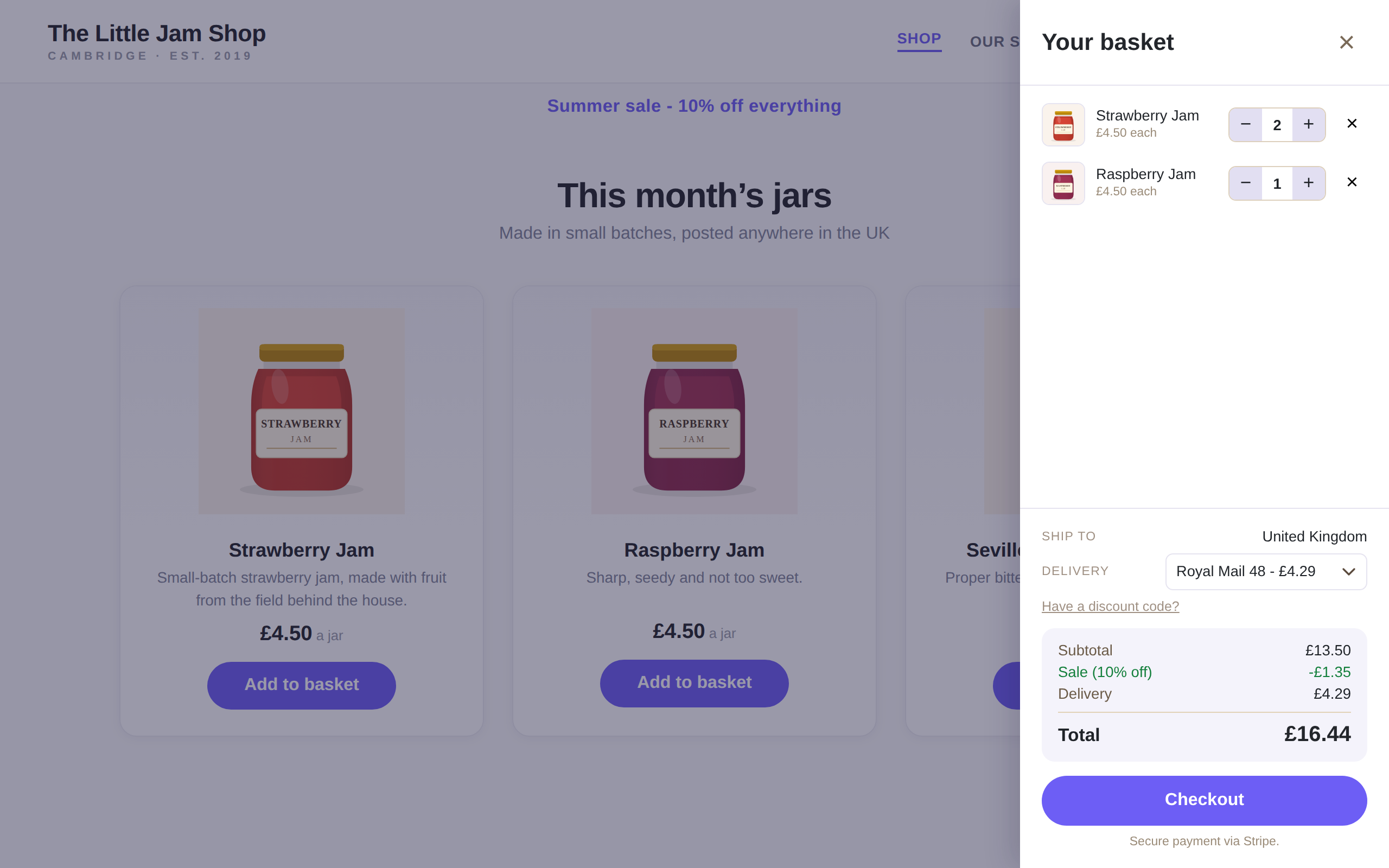
Bang! Cart for Stripe gives every product a buy button you place exactly where you want it – any page, any post, with a shortcode. Customers fill a fast, polished basket that matches your theme, and pay on Stripe’s own checkout page.
Your pages stay yours: the plugin adds no pages, no templates and no database tables of its own. Stripe holds the card details and the order history – this plugin never sees a card number and keeps no order records of its own.
What it does
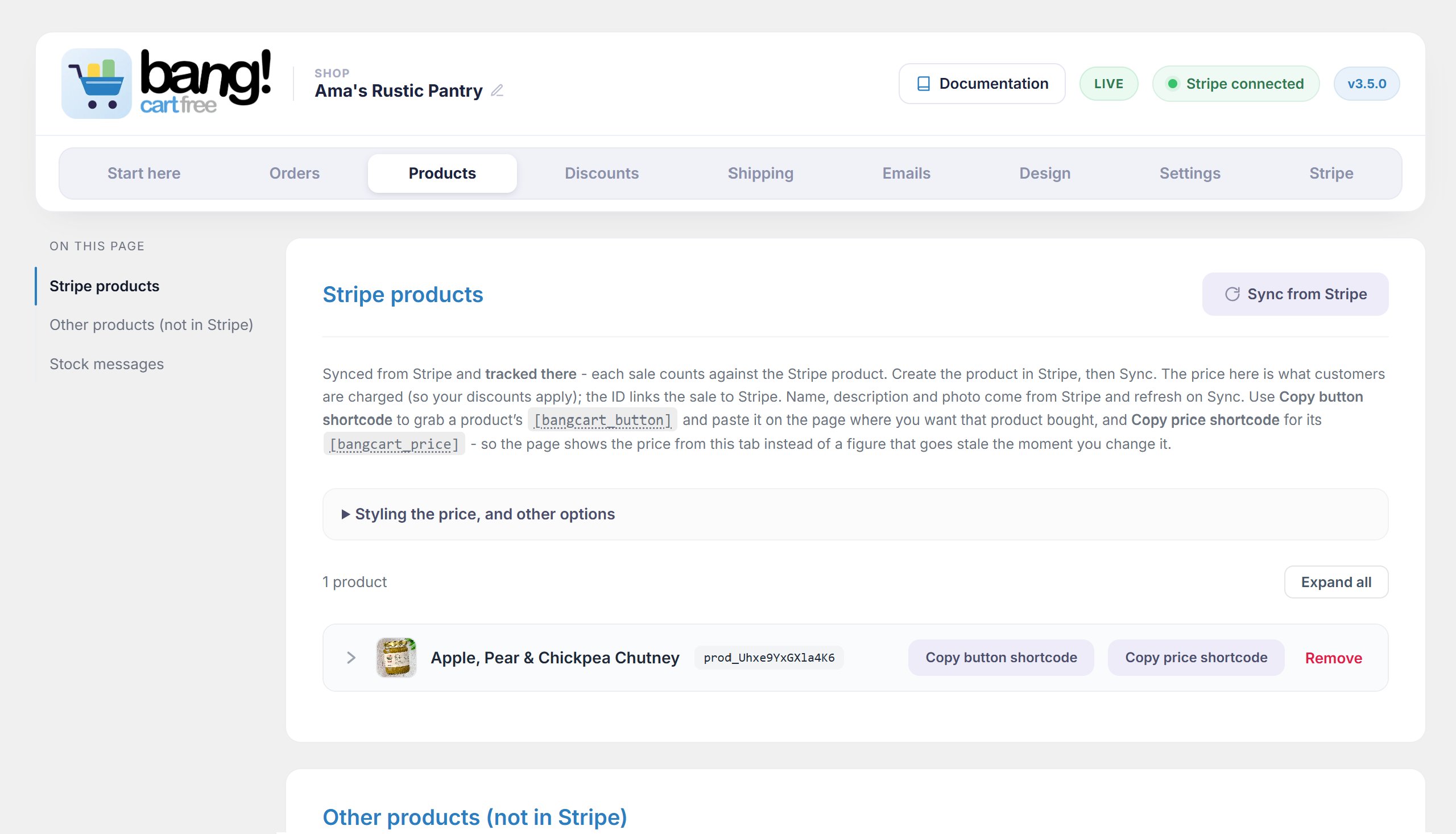
- Add-to-basket buttons for your Stripe products, or for products you add here.
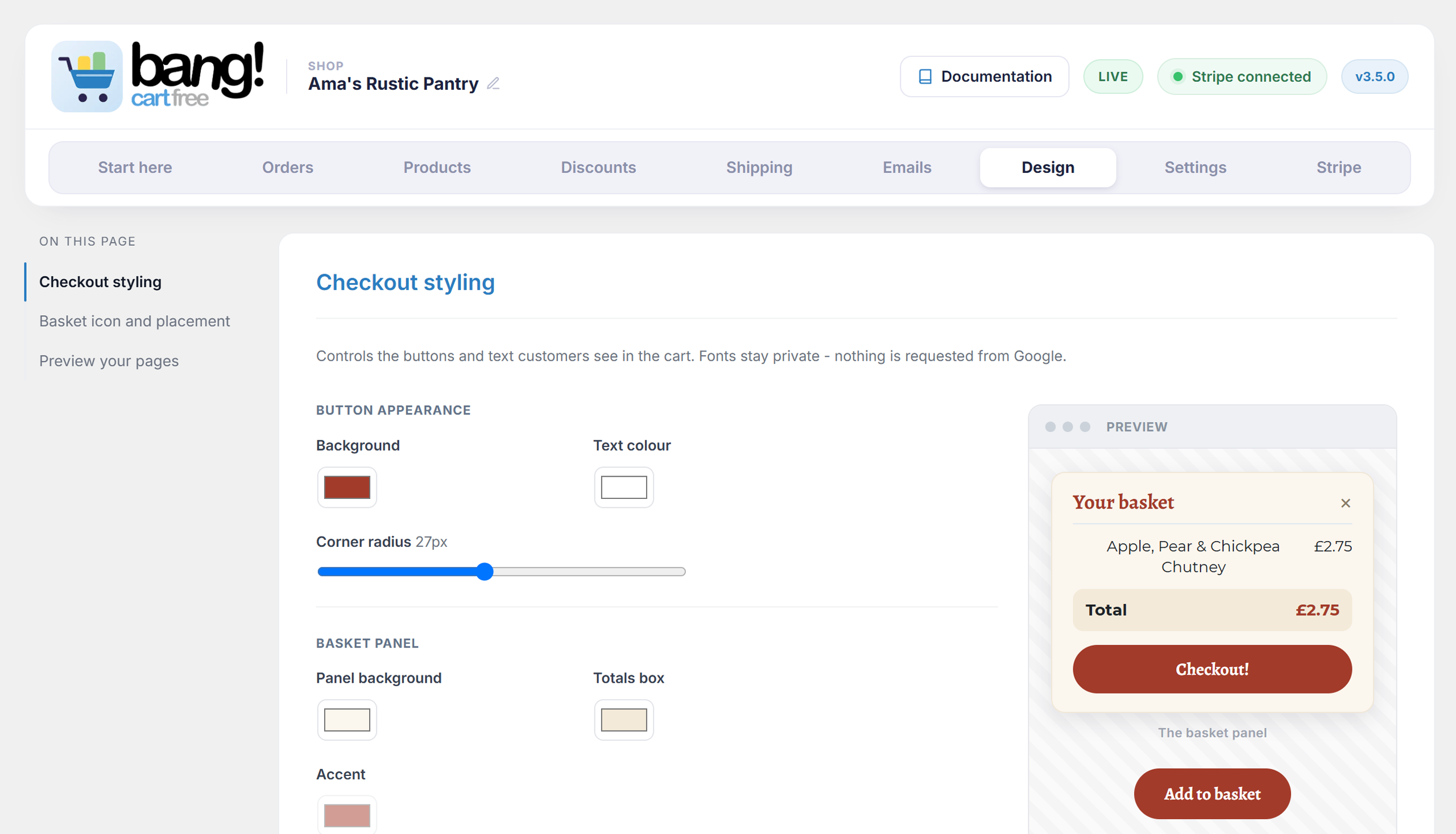
- A basket that works on a phone, in your theme, with your fonts and colours.
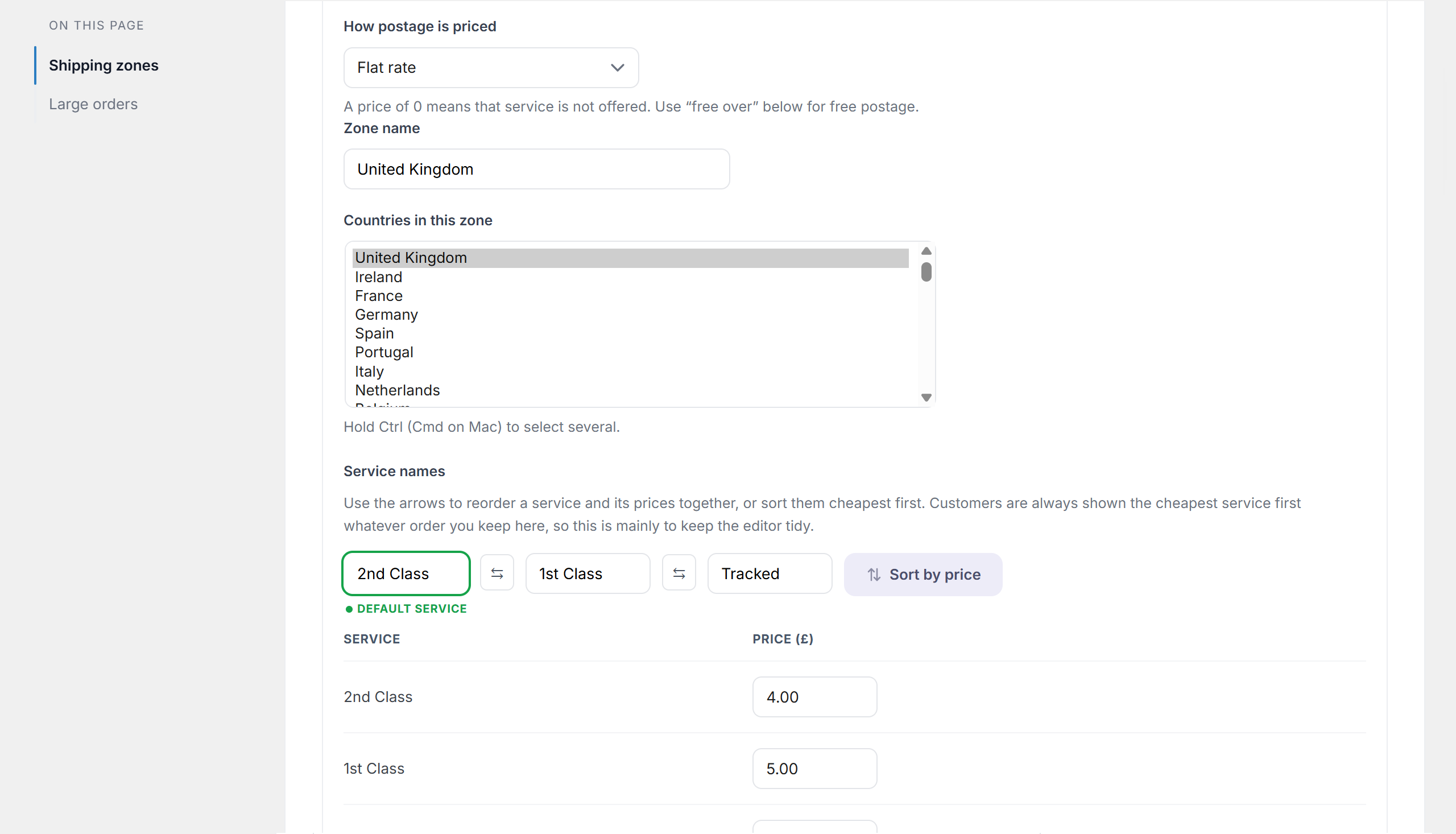
- Delivery zones of your chosen countries – as many zones as you need, each with a flat rate per service, or first item plus each additional – with collection in person.
- Free postage over a spend or a number of items.
- A shop-wide sale percentage.
- Discount codes, fixed or percentage, with a use limit and an expiry.
- Stock counts, with low-stock and sold-out messages you write yourself.
- Reservations, so two people cannot buy the same last item.
- Confirmation emails to your customer and to you, in your own words.
- A PDF receipt the plugin makes itself, attached to both order emails – switch it on under Invoice / receipt document on the Emails tab (a fresh install sends no document until you choose one).
- Delayed bank payments handled properly – stock is not released while a Bacs payment settles.
How your customers can pay
Checkout happens on Stripe’s own payment page, so your shop offers whatever payment methods your Stripe account has switched on – cards, Apple Pay, Google Pay and Link out of the box, and methods like Klarna, iDEAL, Bancontact or Bacs Direct Debit where your country and your customer’s support them. Strong Customer Authentication (3-D Secure) is handled there too, automatically. None of it is configured in this plugin: you switch methods on in Stripe, and your checkout follows. Stripe ships new payment methods, and your shop simply has them.
What it deliberately does not do
- It does not store card details. Payment happens on Stripe’s page.
- It does not keep a copy of your orders. Stripe already has them, and one truth beats two.
- It does not do subscriptions, tax tables, or a hundred payment gateways.
Who it suits
Makers, artists, food producers, small-batch and craft shops – anyone selling a focused range of products from a site that is more than just a shop. If your products live on pages you designed, and you want a buy button on each and a shopping cart that follows your customer around the site, this is built for you.
You will need
A Stripe account and a restricted Stripe key, which the plugin helps you create in one click. Test mode works exactly like live mode, so you can try the whole thing before taking a real payment.
Documentation, with screenshots of every step, lives at bangplugins.com/docs/cart.
External services
This plugin connects to Stripe to take payments. Stripe is the only external service it uses.
When a customer checks out, the plugin creates a Stripe Checkout session through the Stripe API (api.stripe.com) and sends the customer to Stripe’s secure page to pay. It also receives payment confirmations back from Stripe by webhook, and in the admin it reads your products and prices from your Stripe account.
Data sent to Stripe: the items and amounts in the basket, the chosen delivery option and cost, and – entered by the customer on Stripe’s own page – their email and delivery or billing address. The plugin never sees or stores card numbers; Stripe handles those entirely. This happens only when you or a customer does something that needs Stripe: loading products, taking a payment, or verifying the webhook.
Stripe is provided by Stripe, Inc. Your use of it is subject to their terms and privacy policy:
- Stripe Terms: https://stripe.com/legal
- Stripe Privacy Policy: https://stripe.com/privacy
لقطات الشاشة
التنصيب
- Install and activate the plugin.
- Open Bang! Cart in the admin menu and go to the Stripe tab. Press Create your test key in Stripe – Stripe opens with every permission already set – then press Create key in Stripe and paste the key back on the Stripe tab.
- Press Set up webhook automatically on the Stripe tab – one button creates the webhook in your Stripe account and saves the signing secret for you. (You can still add it by hand in your Stripe dashboard if you prefer.) Without a webhook, orders are paid for but no emails are sent.
- Add your products, either by syncing them from Stripe or by adding them here.
- Copy a product’s shortcode onto its page.
الأسئلة المتكررّة
-
Do I need WooCommerce or another ecommerce plugin?
-
No. This is a complete standalone shopping cart: it needs nothing but WordPress and a Stripe account. It adds no pages, templates or database tables of its own, so it sits happily on any site.
-
Do I need a Stripe account?
-
Yes. This plugin is a shopfront for Stripe; Stripe takes the money.
-
Which currencies can I charge in?
-
Any decimal currency Stripe supports – pounds, euros, dollars and dozens more, priced the way you write them (5.50 charges as 5.50). Whole-unit currencies such as the Japanese Yen are not offered yet.
-
Does it work with page builders?
-
Yes. The buy button is a shortcode, so it renders anywhere your builder renders shortcodes – including inside Elementor widgets – and the basket follows your customer on every page.
-
Can I sell digital products?
-
The cart is built around physical goods: stock counts, postage, collection in person. It does not deliver files, so digital downloads are not its focus.
-
Does it work without the webhook?
-
Payments will succeed, but nothing will tell your site that they did – so no emails go out and stock does not go down. Set the webhook up.
-
Where are my orders?
-
In Stripe. The Orders tab shows the recent ones and lets you tick them off as posted, but refunds and the full history live in Stripe, where they belong.
-
Does my customer get a receipt?
-
Two ways, use either or both: Stripe can email its own receipt, and the plugin can attach its own PDF receipt to the order emails – choose Plugin receipt under Invoice / receipt document on the Emails tab. A fresh install has this set to None, so pick one if you want a document sent.
-
Can I use my own products, not Stripe’s?
-
Yes. Products added here are sold and priced normally; they are just not tracked as Stripe products in Stripe’s reporting.
-
Can customers collect in person?
-
Yes. Switch a zone on and leave its postage prices empty.
-
Is it translation-ready?
-
The storefront and most of the admin are. A translation template is included in /languages.
المراجعات
لا توجد مراجعات لهذه الإضافة.
المساهمون والمطوّرون
“Bang! Cart – Standalone Stripe Shopping Cart & Buy Buttons” هو برنامج مفتوح المصدر. وقد ساهم هؤلاء الأشخاص بالأسفل في هذه الإضافة.
المساهمون
ترجمة ”Bang! Cart – Standalone Stripe Shopping Cart & Buy Buttons“ إلى لغتك.
مُهتم بالتطوير؟
تصفّح الشفرة، تحقق من مستودع SVN، أو الاشتراك في سجل التطوير بواسطة RSS.
سجل التغييرات
3.8.0
- Groundwork for the Pro product grid, plus the [bangcart_products] shortcode. On the free plugin alone it does nothing visible – the shortcode shows customers nothing and tells an administrator it needs Pro – so there is no reason to hold back the update. With Bang! Cart Pro it shows your products on any page as a grid or a list, each with an Add to basket button.
- Groundwork for Pro gift options: a seam that lets an add-on put one flat, order-level charge (gift wrapping) on the basket – added after the goods, the discount and the postage, so it is never discounted and never tips a free-delivery threshold, and billed as its own line so the basket and the Stripe charge cannot drift. Invisible on the free plugin alone; with Bang! Cart Pro it powers paid gift wrapping in the basket.
- New: the basket’s heading (“Your basket”) is now editable. Set it under Button labels on the Design tab – call it “Your bag”, “Our larder”, whatever suits your shop. The live preview shows it as you type.
- New: the Add to basket button’s text size is now adjustable, next to its colour and corner radius on the Design tab (11-28px). The live preview updates as you drag.
- New: a Pro tab and a “Go Pro” menu link, so you can see everything Bang! Cart Pro adds from inside the plugin. Once Pro is installed the menu simply reads “Bang! Cart Pro” and the tab and link step aside – no selling to someone who already has it.
- New: the basket’s “Discount code?” button now only appears when you have a live code for a customer to type. Save your first code and it shows; when the last one expires or is deleted it quietly goes. No setting to manage – it follows your codes.
- When saving codes flips that button on or off, a dialog reminds you to clear any page cache, since a cached basket keeps showing the old state until you do.
- The Settings tab now runs in a sensible order: Shop status first, then Shop basics and the thank-you page, with policy pages at the bottom.
- New: a quiet, dismissible prompt to leave a WordPress.org review. It only appears once your shop has taken a sale and a week has passed, never before, and it goes for good once you review or say you already have.
- Sync from Stripe now says why products did not come in. If Stripe sends back nothing, it tells you to check the key comes from the same sandbox or live account as your products. If Stripe sends products the shop cannot use, it counts each reason: no default price, no fixed amount, a different currency, or a subscription. A sync that brings some in also lists what it skipped.
- The Stripe products card now says a synced product sells at one fixed price, its default price in Stripe.
- Fix: an admin-only shortcode note no longer duplicates itself where a theme or builder runs shortcodes twice.
- Fix: a variants product with no priced variant could show the custom-price “not on sale” note, which named the wrong option.
- Fix: a Stripe product with no description no longer causes a PHP warning on the Products tab.
- Housekeeping: the connection probe no longer trips a Plugin Check warning about a non-prefixed filter, and the readme’s changelog is trimmed to the recent releases (the full history ships in changelog.txt).